
4. Functions (4.25–4.32) – outputs, math, registers, parameters, jumps, logic
Streszczenie: Funkcje Indexer 2, część 3: Set Output, Position Triggered Output, Math, If Register Set, Get Set Parameter, Conditional Jump, Extended Math i Logic – operacje na wyjściach, rejestrach i parametrach napędu oraz skoki warunkowe.
EN: Indexer 2 functions part 3: outputs, math, register and parameter operations, conditional jumps and logic.
Dotyczy: serwonapędy Copley Controls z programem Indexer 2 (CVM), program CME 2
Źródło: dokumentacja producenta (Copley Controls Indexer 2 Program User’s Guide); tabele przepisane z obrazów na tekst – opracowanie Multiprojekt
4.25 Set Output
4.25.1 Set Output Overview
Set Output sets an output to the specified state.
NOTE: When this function is executed, it changes the configuration of the selected output to "Program Control, Active Low.” The “Program Control, Active Low” configuration will stay in effect until the amplifier is reset. Consider this effect when programming digital outputs.
4.25.2 Adding a Set Output Step to a Sequence
Click Add New Step  on the Program tab to open Indexer Functions.
Click Input/Output: Set Output to select the function. Click Add to add it to the sequence.
The Program tab displays the Set Output parameters.
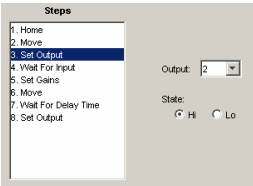
Choose appropriate values for the following parameters
Set Output – parameters
| Parameter | Description |
|---|---|
| Output | Selects which output will be set. |
| State | Hi: Sets the selected output high or off. Lo: Sets the selected output low or on. |
Original image of the table (from the PDF manual)

4.26 Position Triggered Output
4.26.1 Position Triggered Output Function Overview
This function programs the amplifier to activate a digital output when the specified position criteria are met.
4.26.2 Adding a Position Triggered Output Step to a Sequence
Click Add New Step  on the Program tab to open Indexer Functions.
Click Input/Output: Position Triggered Output to select the function. Click Add to add it to the sequence.
The Program tab displays the Position Triggered Output settings.
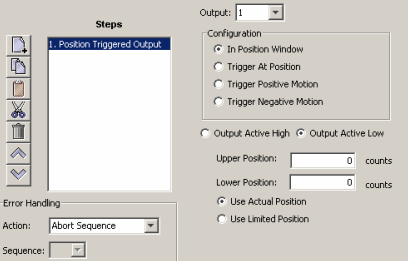
Choose appropriate values for the basic settings and configurations described below. Enter numeric values directly or enter the number (R0-R31) of an Indexer 2 Program register. See Using Registers to Pass Values to Functions
Position Triggered Output – basic settings
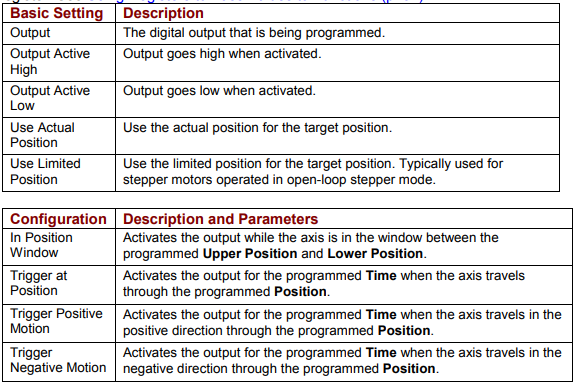
| Basic Setting | Description |
|---|---|
| Output | The digital output that is being programmed. |
| Output Active High | Output goes high when activated. |
| Output Active Low | Output goes low when activated. |
| Use Actual Position | Use the actual position for the target position. |
| Use Limited Position | Use the limited position for the target position. Typically used for stepper motors operated in open-loop stepper mode. |
Position Triggered Output – configurations
| Configuration | Description and Parameters |
|---|---|
| In Position Window | Activates the output while the axis is in the window between the programmed Upper Position and Lower Position. |
| Trigger at Position | Activates the output for the programmed Time when the axis travels through the programmed Position. |
| Trigger Positive Motion | Activates the output for the programmed Time when the axis travels in the positive direction through the programmed Position. |
| Trigger Negative Motion | Activates the output for the programmed Time when the axis travels in the negative direction through the programmed Position. |
Original image of the table (from the PDF manual)
4.26.3 Position Triggered Output Notes
When this function is executed, it changes the configuration of the selected output to the chosen Position Triggered Output configuration. This configuration of the output will stay in effect until the amplifier is reset or the output configuration is changed by another function.
Errors
A sequence error will occur if this function is executed when a register used for a function parameter contains a value that is not valid for the parameter.
4.27 Math
4.27.1 Math Function Overview
This function is used to perform basic integer math and assign the result to an Indexer 2 Program register.
4.27.2 Adding a Math Step to a Sequence
Click Add New Step  on the Program tab to open Indexer Functions.
Click Tools: Math to select the function. Click Add to add it to the sequence.
The Program tab displays the Math settings.
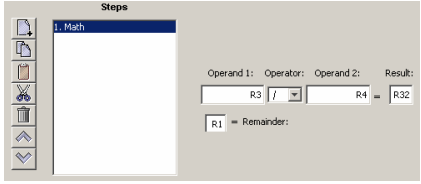
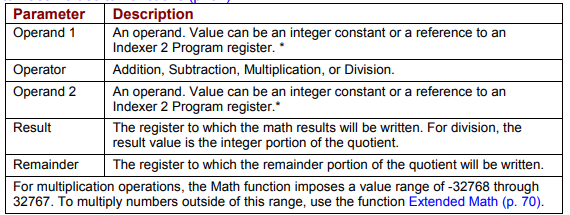
Choose appropriate values for the following parameters. Enter numeric values directly or enter the number (R0-R31) of an Indexer 2 Program register. See Using Registers to Pass Values to Functions
Math – parameters
| Parameter | Description |
|---|---|
| Operand 1 | An operand. Value can be an integer constant or a reference to an Indexer 2 Program register.* |
| Operator | Addition, Subtraction, Multiplication, or Division. |
| Operand 2 | An operand. Value can be an integer constant or a reference to an Indexer 2 Program register.* |
| Result | The register to which the math results will be written. For division, the result value is the integer portion of the quotient. |
| Remainder | The register to which the remainder portion of the quotient will be written. |
| For multiplication operations, the Math function imposes a value range of -32768 through 32767. To multiply numbers outside of this range, use the function Extended Math. | |
Original image of the table (from the PDF manual)
Math – parameters
| Parameter | Description |
|---|---|
| Operand 1 | An operand. Value can be an integer constant or a reference to an Indexer 2 Program register.* |
| Operator | Addition, Subtraction, Multiplication, or Division. |
| Operand 2 | An operand. Value can be an integer constant or a reference to an Indexer 2 Program register.* |
| Result | The register to which the math results will be written. For division, the result value is the integer portion of the quotient. |
| Remainder | The register to which the remainder portion of the quotient will be written. |
| For multiplication operations, the Math function imposes a value range of -32768 through 32767. To multiply numbers outside of this range, use the function Extended Math. | |
Original image of the table (from the PDF manual)
4.27.3 Math Function Notes
The Math function does not support carry on addition or borrow on subtraction. Thus, if a Math operation results in a number that exceeds the capacity of the register (between 231-1 and -231) the results will be incorrect (but no error will be generated).
Errors
A sequence error will occur if:
During multiplication, one of the operands is a register with a value less than -32768 or greater than 32767.
During division, Operand 2 is a register with a value equal to 0
4.28 If Register Set
4.28.1 If Register Set Function Overview
This function is used to conditionally assign a value to an Indexer 2 Program register.
4.28.2 Adding an If Register Set Step to a Sequence
Click Add New Step  on the Program tab to open Indexer Functions.
Click Tools: If Register Set to select the function. Click Add to add it to the sequence.
The Program tab displays the If Register Set settings.
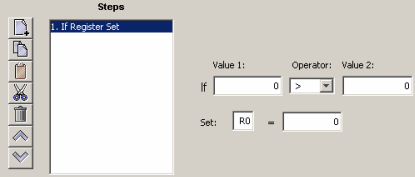
Choose appropriate values for the following parameters. Enter numeric values directly or enter the number (R0-R31) of an Indexer 2 Program register. See Using Registers to Pass Values to Functions
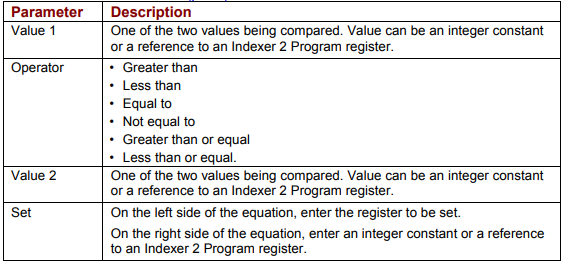
If Register Set – parameters
| Parameter | Description |
|---|---|
| Value 1 | One of the two values being compared. Value can be an integer constant or a reference to an Indexer 2 Program register. |
| Operator | Greater than; Less than; Equal to; Not equal to; Greater than or equal; Less than or equal. |
| Value 2 | One of the two values being compared. Value can be an integer constant or a reference to an Indexer 2 Program register. |
| Set | On the left side of the equation, enter the register to be set. On the right side of the equation, enter an integer constant or a reference to an Indexer 2 Program register. |
Original image of the table (from the PDF manual)
4.28.3 If Register Set Notes
When the Indexer 2 Program has been set up to use a register to select a sequence, the If Register Set function can determine which sequence will execute after the current sequence has finished.
Errors
This function does not generate an error.
4.29 Get Set Parameter
Get Set Parameter Function Overview
This function is used to get or set the value of one the amplifier’s internal parameters.
4.29.1 Adding a Get Set Parameter Step to a Sequence
Click Add New Step  on the Program tab to open Indexer Functions.
Click Tools: Get Set Parameter to select the function. Click Add to add it to the sequence.
The Program tab displays the Get Set Parameter settings.
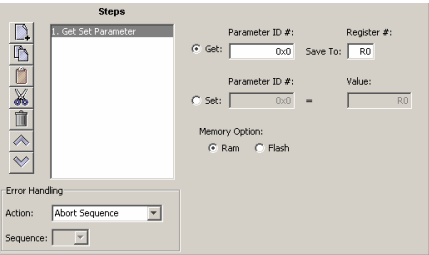
Choose appropriate values for the following settings. Enter numeric values directly or enter the number (R0-R31) of an Indexer 2 Program register. See Using Registers to Pass Values to Functions
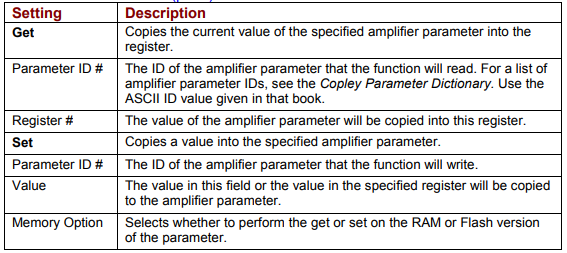
Get Set Parameter – settings
| Setting | Description |
|---|---|
| Get | |
| Get | Copies the current value of the specified amplifier parameter into the register. |
| Parameter ID # | The ID of the amplifier parameter that the function will read. For a list of amplifier parameter IDs, see the Copley Parameter Dictionary. Use the ASCII ID value given in that book. |
| Register # | The value of the amplifier parameter will be copied into this register. |
| Set | |
| Set | Copies a value into the specified amplifier parameter. |
| Parameter ID # | The ID of the amplifier parameter that the function will write. |
| Value | The value in this field or the value in the specified register will be copied to the amplifier parameter. |
| Memory Option | Selects whether to perform the get or set on the RAM or Flash version of the parameter. |
Original image of the table (from the PDF manual)
4.29.2 Get Set Parameter Notes
Parameter IDs can be entered as decimal or hexadecimal numbers. When entering hexadecimal numbers, use the 0x notation (for instance, 0x00c1). The Indexer 2 Program will convert and display all values in hexadecimal form.
Errors
A sequence error will occur if:
The specified parameter ID does not exist.
The specified parameter returns more than two words.
A set is attempted on a read only parameter.
A set is attempted and the value is illegal for the parameter being set.
4.30 Conditional Jump
4.30.1 Conditional Jump Overview
This function is used to conditionally jump to a specified step within a specified sequence. If the conditional statement is not true, the Indexer 2 Program continues to the next step in the original sequence.
4.30.2 Adding a Conditional Jump Step to a Sequence
Click Add New Step  on the Program tab to open Indexer Functions.
Click Tools: Conditional Jump to select the function. Click Add to add it to the sequence.
The Program tab displays the Conditional Jump settings.
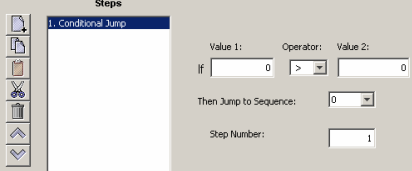
Choose appropriate values for the following parameters. Enter numeric values directly or enter the number (R0-R31) of an Indexer 2 Program register. See Using Registers to Pass Values to Functions
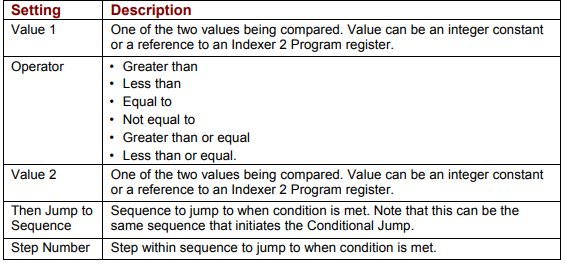
Conditional Jump – settings
| Setting | Description |
|---|---|
| Value 1 | One of the two values being compared. Value can be an integer constant or a reference to an Indexer 2 Program register. |
| Operator | Greater than; Less than; Equal to; Not equal to; Greater than or equal; Less than or equal. |
| Value 2 | One of the two values being compared. Value can be an integer constant or a reference to an Indexer 2 Program register. |
| Then Jump to Sequence | Sequence to jump to when condition is met. Note that this can be the same sequence that initiates the Conditional Jump. |
| Step Number | Step within sequence to jump to when condition is met. |
Original image of the table (from the PDF manual)
4.30.3 If Register Then Notes
If a jump is made to a sequence that has not been programmed or to a step in a sequence that does not exist, an error is not generated. Instead, the Indexer 2 Program will return to an idle state waiting for the next Go command.
Errors
This function does not generate sequence errors
4.31 Extended Math
4.31.1 Extended Math Function Overview
This function is used to perform basic integer math and assign the result to an Indexer 2 Program register. Extended Math is identical to Math (p. 66) except that Extended Math does not impose a size limit on multiplication operands.
4.31.2 Adding an Extended Math Step to a Sequence
Click Add New Step  on the Program tab to open Indexer Functions.
Click Tools: Extended Math to select the function. Click Add to add it to the sequence.
The Program tab displays the Extended Math settings.
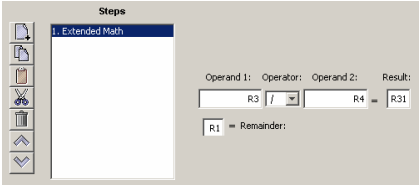
Choose appropriate values for the following parameters. Enter numeric values directly or enter the number (R0-R31) of an Indexer 2 Program register. See Using Registers to Pass Values to Function
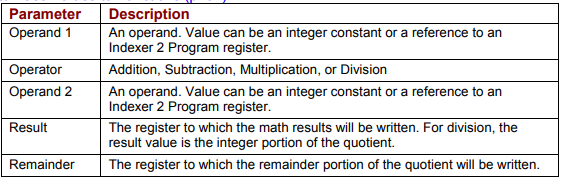
Extended Math – parameters
| Parameter | Description |
|---|---|
| Operand 1 | An operand. Value can be an integer constant or a reference to an Indexer 2 Program register. |
| Operator | Addition, Subtraction, Multiplication, or Division. |
| Operand 2 | An operand. Value can be an integer constant or a reference to an Indexer 2 Program register. |
| Result | The register to which the math results will be written. For division, the result value is the integer portion of the quotient. |
| Remainder | The register to which the remainder portion of the quotient will be written. |
Original image of the table (from the PDF manual)
4.31.3 Extended Math Function Notes
The Math function does not support carry on addition or borrow on subtraction. Thus, if a Math operation results in a number that exceeds the capacity of the register (between 231-1 and -231) the results will be incorrect (but no error will be generated).
Errors
A sequence error will occur if:
During division, Operand 2 is a register with a value equal to 0.
4.32 Logic
4.32.1 Logic Function Overview
This function is used to perform logical operations on amplifier parameter values or Indexer 2 register values.
4.32.2 Adding a Logic Step to a Sequence
Click Add New Step  on the Program tab to open Indexer Functions.
Click Tools: Logic to select the function. Click Add to add it to the sequence.
The Program tab displays the Logic settings.
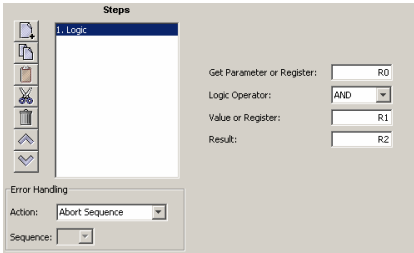
Choose appropriate values for the following parameters. Enter numeric values directly or enter the number (R0-R31) of an Indexer 2 Program register. See Using Registers to Pass Values to Funtions
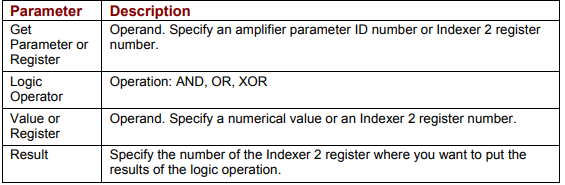
Logic – parameters
| Parameter | Description |
|---|---|
| Get Parameter or Register | Operand. Specify an amplifier parameter ID number or Indexer 2 register number. |
| Logic Operator | Operation: AND, OR, XOR. |
| Value or Register | Operand. Specify a numerical value or an Indexer 2 register number. |
| Result | Specify the number of the Indexer 2 register where you want to put the results of the logic operation. |
Original image of the table (from the PDF manual)
4.32.3 Logic Function Notes
Parameter IDs can be entered as decimal or hexadecimal numbers. When entering hexadecimal numbers, use the 0x notation (for instance, 0x00c1). The Indexer 2 Program will convert and display all values in hexadecimal form.
Errors
A sequence error will occur if:
The specified parameter ID does not exist.
The specified parameter ID is for a flash only parameter.
The specified parameter returns more than two words.
Słowa kluczowe
Set Output, Position Triggered Output, Math, Extended Math, If Register Set, Get Set Parameter, Conditional Jump, Logic, AND, OR, XOR, rejestry, parametry napędu