
10. Setting Codes
Streszczenie: Kody konfiguracyjne ID2000 (typy VI i VII): włączanie trybu kodów, typy i kolor kodów, liczba odczytów, prefiks/sufiks, celownik, oświetlenie, brzęczyk, USB, port szeregowy, informacje o urządzeniu, wyzwalanie i zarządzanie – kody pozostawione jako obrazy do skanowania.
EN: ID2000 setting codes (types VI and VII): enabling setting codes, code types and colour, reading quantity, prefix/suffix, aiming, light, buzzer, USB, serial port, device information, trigger and management – codes kept as scannable images.
Dotyczy: przemysłowy czytnik kodów Hikrobot serii ID2000 (typy I–VII; Fast Ethernet, USB lub RS-232; obsługa przez klienta IDMVS i kody konfiguracyjne)
Źródło: dokumentacja producenta (Hikrobot ID2000 Series Industrial Code Reader User Manual); tabele i uwagi przepisane z obrazów na tekst; opisy rysunków – opracowanie Multiprojekt
10.1 Introduction
The device supports configuring parameters via reading special codes that are called setting codes. Here we introduce common setting codes.
Note:
- Type VI and type VII devices support the function of setting codes.
- Before using other setting codes, you need to scan Enable Setting Codes first to activate the function of setting codes.
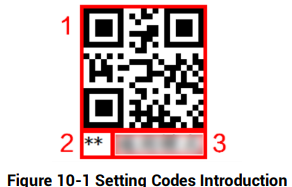
Figure 10-1 Setting Codes Introduction
Figure description (text version): Example setting code (QR code) with red callouts: 1 – the code part of the setting code, 2 – the “**” mark for the default setting, 3 – the text content of the setting code (see Table 10-1).
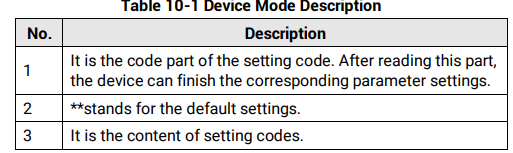
| No. | Description |
|---|---|
| 1 | It is the code part of the setting code. After reading this part, the device can finish the corresponding parameter settings. |
| 2 | “**” stands for the default settings. |
| 3 | It is the content of the setting codes. |
Via reading setting codes, the device can set enable/disable settings, set code type, set quantity of code reading, set data processing, set aiming system, set light source, set serial port, etc.
10.2 Enable/Disable Setting Codes
Before using other setting codes, you need to scan Enable Setting Codes first to activate the function of setting codes. Scan Disable Setting Codes to exit setting codes function.
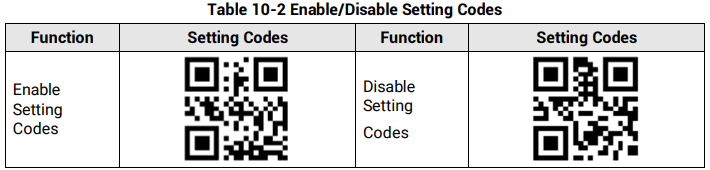
Table 10-2 Enable/Disable Setting Codes
Figure description (text version): Scannable setting codes (kept as an image): left – Enable Setting Codes, right – Disable Setting Codes.
10.3 Set Setting Codes of Code Type
The device can be set what code type to be read via reading specific setting codes. Currently, the device supports Code 39, Code 93, Code 128, CodeBar, ITF 25, ITF 14, EAN 8, EAN 13, UPCA, UPCE, QR Code, Data Matrix, Micro QR, AZTEC, PDF 417, and Han Xin Code.

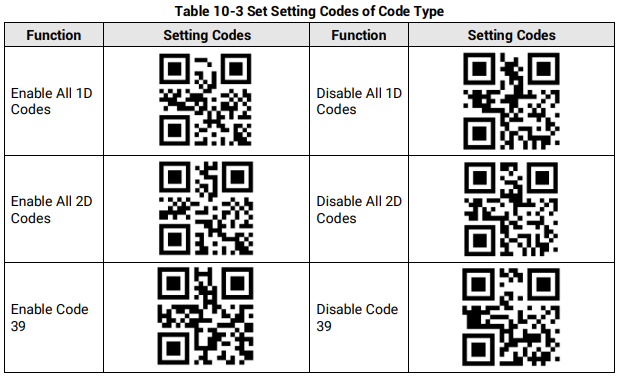
Table 10-3 Set Setting Codes of Code Type
Figure description (text version): Scannable setting codes (kept as an image). Functions in the table, row by row: Enable All 1D Codes / Disable All 1D Codes; Enable All 2D Codes / Disable All 2D Codes; Enable Code 39 / Disable Code 39.
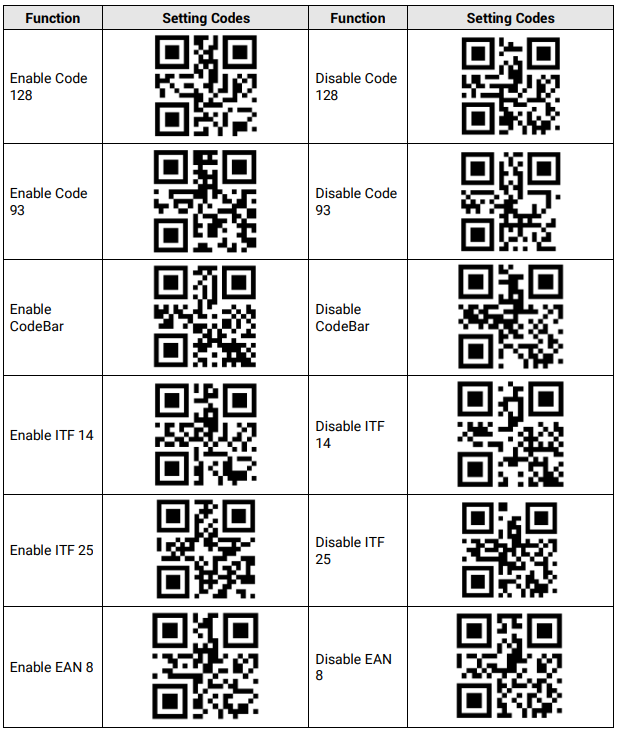
Figure description (text version): Scannable setting codes (kept as an image). Functions in the table, row by row: Enable Code 128 / Disable Code 128; Enable Code 93 / Disable Code 93; Enable CodeBar / Disable CodeBar; Enable ITF 14 / Disable ITF 14; Enable ITF 25 / Disable ITF 25; Enable EAN 8 / Disable EAN 8.
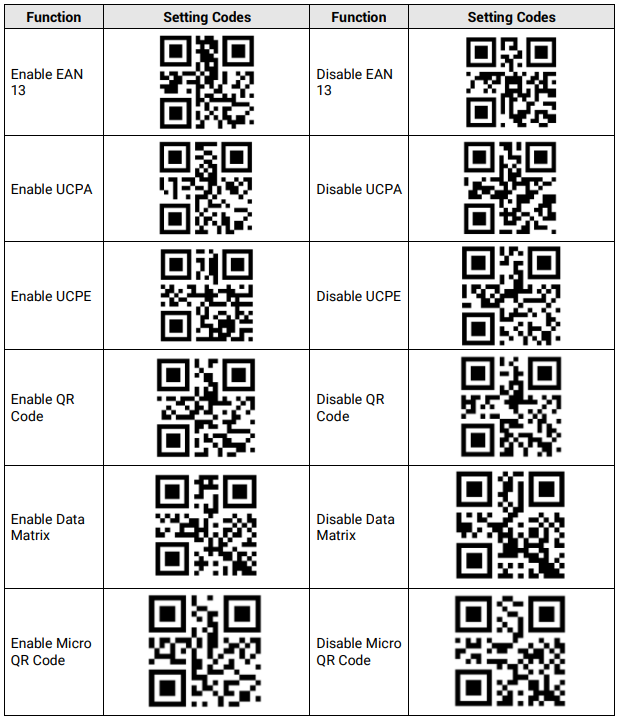
Figure description (text version): Scannable setting codes (kept as an image). Functions in the table, row by row: Enable EAN 13 / Disable EAN 13; Enable UPCA / Disable UPCA; Enable UPCE / Disable UPCE; Enable QR Code / Disable QR Code; Enable Data Matrix / Disable Data Matrix; Enable Micro QR Code / Disable Micro QR Code.
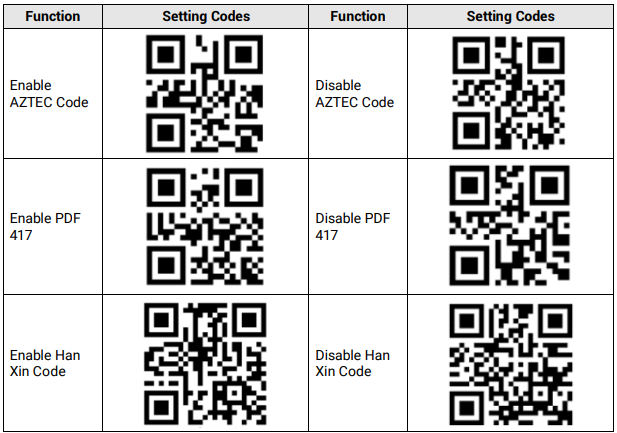
Figure
description (text version):
Scannable setting codes (kept as an image). Functions in the table, row by row: Enable AZTEC Code / Disable AZTEC Code; Enable PDF 417 / Disable PDF 417; Enable Han Xin Code / Disable Han Xin Code.10.4 Set Setting Codes of Code Color
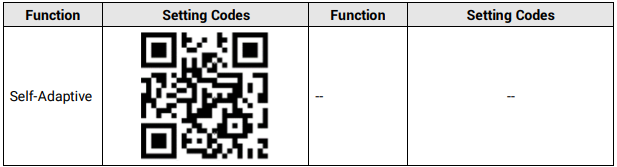
The setting codes of code color include white code on black wall and black code on white wall.
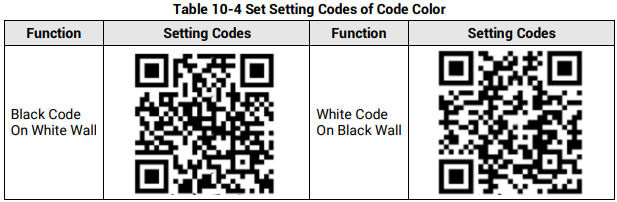
Table 10-4 Set Setting Codes of Code Color
Figure description (text version): Scannable setting codes (kept as an image). Functions in the table, row by row: Black Code On White Wall / White Code On Black Wall.
Figure

(text version):
Scannable setting codes (kept as an image). Functions in the table, row by row: Self-Adaptive.Note:
- Code 128 and 2D codes can be recognized no matter what kind of code color is configured.
- PDF 417 as a white code on a black wall cannot be recognized if the code color is set to white code or self-adaptive.
10.5 Set Setting Codes of Code Reading Quantity
You can set the device’s code reading quantity via scanning the specific setting codes as shown below.
Steps1.
- Read setting codes of editing quantity of code reading.
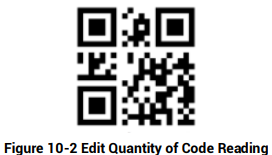
Figure 10-2 Edit Quantity of Code Reading
2.Figure description (text version): Scannable setting code (QR code) for editing the quantity of code reading.
- Read the corresponding digital codes according to actual demands.
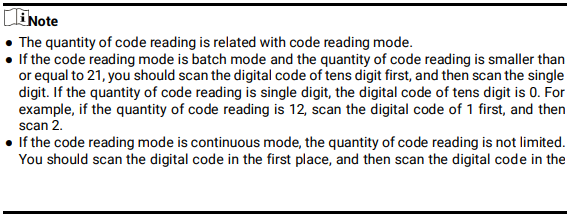
- The
quantity
3.of code reading is related to the code reading mode. - If the code reading mode is batch mode and the quantity of code reading is smaller than or equal to 21, you should scan the digital code of the tens digit first, and then scan the units digit. If the quantity of code reading is a single digit, the digital code of the tens digit is 0. For example, if the quantity of code reading is 12, scan the digital code 1 first, and then scan 2.
- If the code reading mode is continuous mode, the quantity of code reading is not limited. You should scan the digital code in the first place, then the digital code in the second place, etc. For example, if the quantity of code reading is 530, scan 5 first, then 3, and 0 at last.

- Read the setting codes of saving to save the parameter settings.
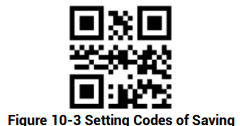
Figure 10-3 Setting Codes of Saving
Figure description (text version): Scannable setting code (QR code) for saving the parameter settings.
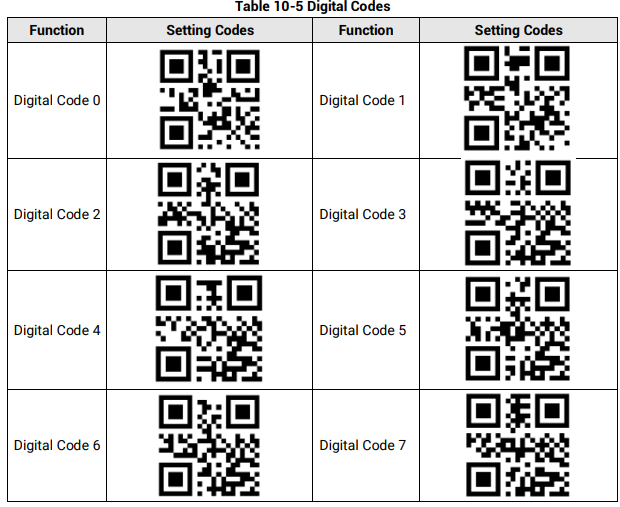
Table 10-5 Digital Codes
Figure description (text version): Scannable setting codes (kept as an image). Functions in the table, row by row: Digital Code 0 / Digital Code 1; Digital Code 2 / Digital Code 3; Digital Code 4 / Digital Code 5; Digital Code 6 / Digital Code 7.
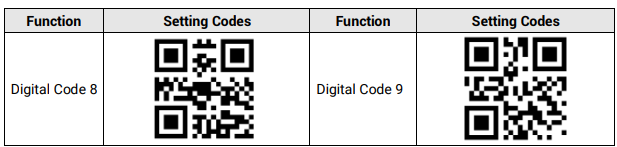
Figure
10.6 Set Setting Codes of Data Processing
You can set the device’s outputted code results via scanning the specific setting codes as shown below.
Steps1.
- Read setting codes of enabling prefix or suffix
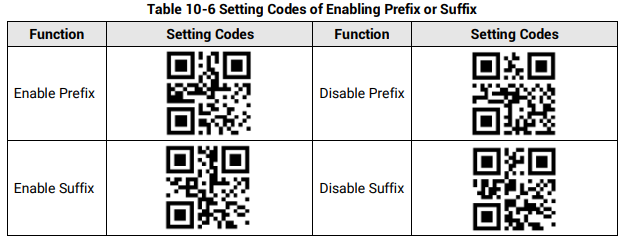
Table 10-6 Setting Codes of Enabling Prefix or Suffix
2.Figure description (text version): Scannable setting codes (kept as an image). Functions in the table, row by row: Enable Prefix / Disable Prefix; Enable Suffix / Disable Suffix.
- Read setting codes of editing prefix or editing suffix
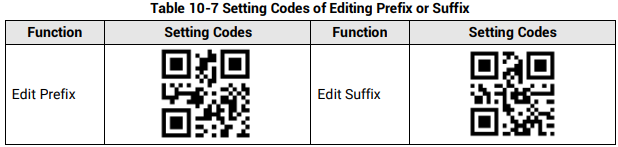
Table 10-7 Setting Codes of Editing Prefix or Suffix
3.Figure description (text version): Scannable setting codes (kept as an image). Functions in the table, row by row: Edit Prefix / Edit Suffix.
- Set prefix and suffix characters according to actual demands, find the corresponding hexadecimal code value in ASCII table (see Appendix A ASCII Table for details), and read the corresponding digital codes. For example, if the defined prefix and suffix content is *, the corresponding ASCII code is 2a. Use to the device to read the digital code 2 and digital code a in turn.
Note: Up to ten setting codes can be read.
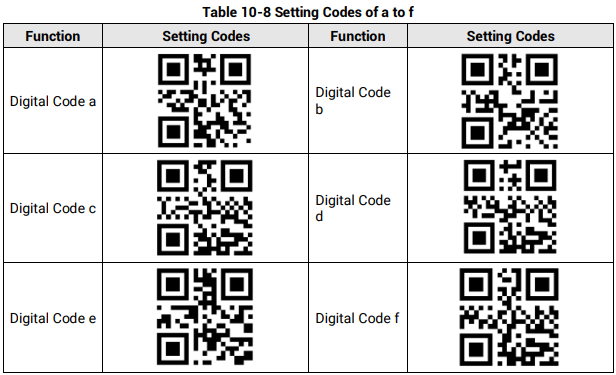
Table 10-8 Setting Codes of a to f
Figure description (text version): Scannable setting codes (kept as an image). Functions in the table, row by row: Digital Code a / Digital Code b; Digital Code c / Digital Code d; Digital Code e / Digital Code f.
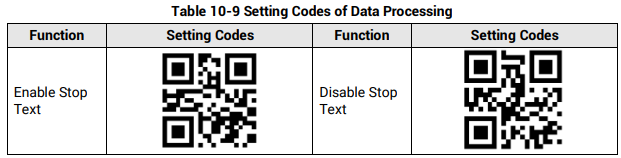
Table 10-9 Setting Codes of Data Processing
Figure description (text version): Scannable setting codes (kept as an image). Functions in the table, row by row: Enable Stop Text / Disable Stop Text.
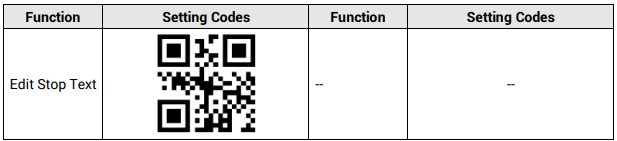
Figure
4.
- Read the setting codes of saving to save the parameter settings.
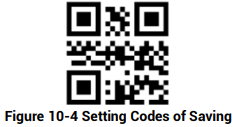
Figure 10-4 Setting Codes of Saving
Figure description (text version): Scannable setting code (QR code) for saving the parameter settings.
10.7 Set Setting Codes of Aiming System
The aiming system is used to locate codes in the field of view to help read codes easily. The setting codes of aiming system can enable, disable, delay or set delay time of the aiming system.
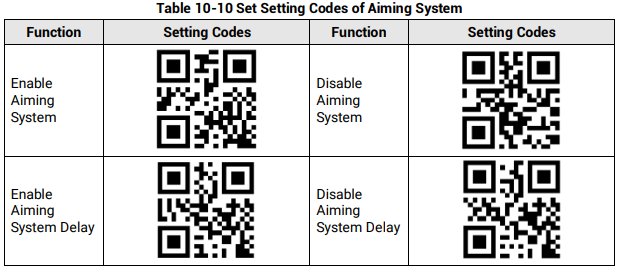
Table 10-10 Set Setting Codes of Aiming System
Figure description (text version): Scannable setting codes (kept as an image). Functions in the table, row by row: Enable Aiming System / Disable Aiming System; Enable Aiming System Delay / Disable Aiming System Delay.
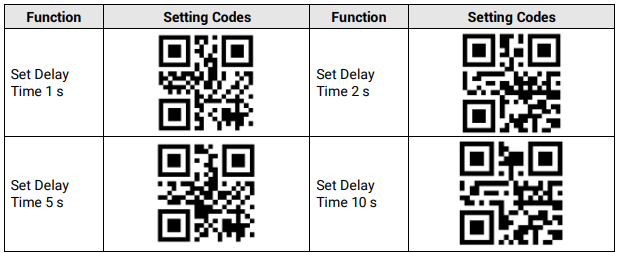
Figure
description (text version):
Scannable setting codes (kept as an image). Functions in the table, row by row: Set Delay Time 1 s / Set Delay Time 2 s; Set Delay Time 5 s / Set Delay Time 10 s.10.8 Set Setting Codes of Light Source
The setting codes of light source can enable or disable the light source, set polling interval, etc. After enabling Light Polling, you can let red and while light sources polling alternately in accordance with configured interval when code reading succeeds or before ending trigger.

- By default, the polling interval is 2 s.
- The supported setting codes of the light source may differ by device models.
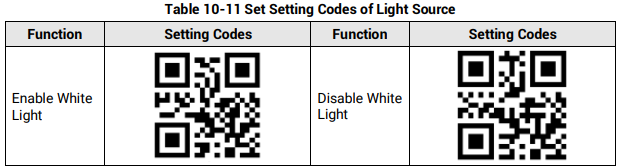
Table 10-11 Set Setting Codes of Light Source
Figure description (text version): Scannable setting codes (kept as an image). Functions in the table, row by row: Enable White Light / Disable White Light.
10.9 Set Setting Codes of Buzzer
The setting codes of buzzer can enable or disable the buzzer function, set its duration, etc.

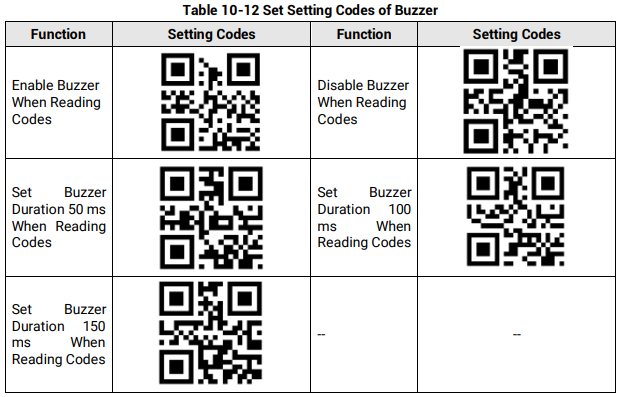
Table 10-12 Set Setting Codes of Buzzer
Figure description (text version): Scannable setting codes (kept as an image). Functions in the table, row by row: Enable Buzzer When Reading Codes / Disable Buzzer When Reading Codes; Set Buzzer Duration 50 ms When Reading Codes / Set Buzzer Duration 100 ms When Reading Codes; Set Buzzer Duration 150 ms When Reading Codes.
10.10 Set Setting Codes of USB Communication
The setting codes of USB communication can enable or disable the USB communication function, set baud rate, etc.

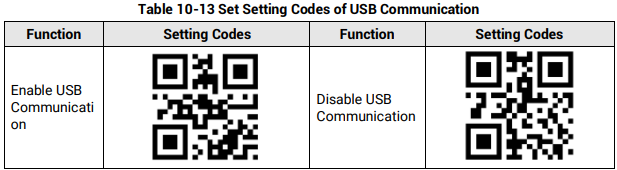
Table 10-13 Set Setting Codes of USB Communication
Figure description (text version): Scannable setting codes (kept as an image). Functions in the table, row by row: Enable USB Communication / Disable USB Communication.
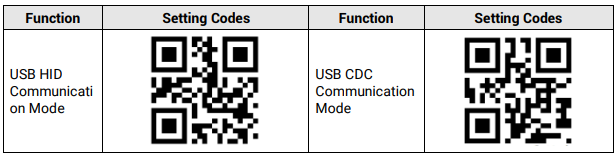
Figure
description (text version):
Scannable setting codes (kept as an image). Functions in the table, row by row: USB HID Communication Mode / USB CDC Communication Mode.10.11 Set Setting Codes of Serial Port
The setting codes of serial port can enable or disable serial port function, set the baud rate, parity bit, and stop bit.

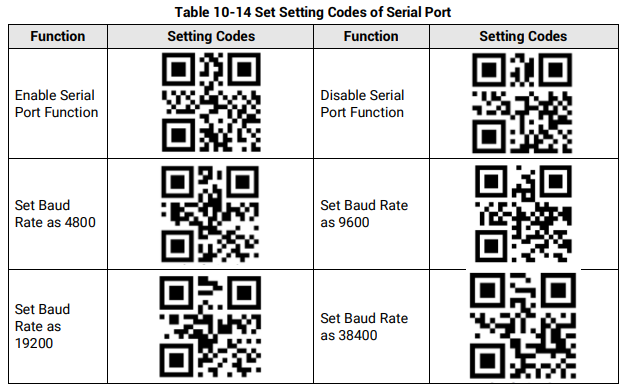
Table 10-14 Set Setting Codes of Serial Port
Figure description (text version): Scannable setting codes (kept as an image). Functions in the table, row by row: Enable Serial Port Function / Disable Serial Port Function; Set Baud Rate as 4800 / Set Baud Rate as 9600; Set Baud Rate as 19200 / Set Baud Rate as 38400.
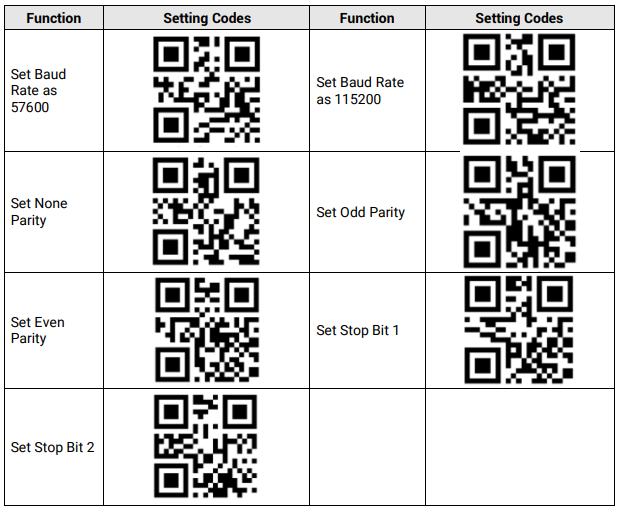
Figure
description (text version):
Scannable setting codes (kept as an image). Functions in the table, row by row: Set Baud Rate as 57600 / Set Baud Rate as 115200; Set None Parity / Set Odd Parity; Set Even Parity / Set Stop Bit 1; Set Stop Bit 2.10.12 Set Setting Codes of Sending Device Information
The device can send its information to the PC via reading specific setting codes, and the device information includes name, version, algorithm version, hardware version, serial number, etc.
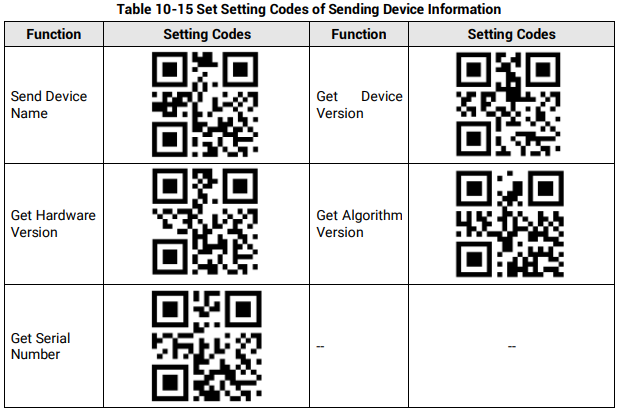
Table 10-15 Set Setting Codes of Sending Device Information
Figure description (text version): Scannable setting codes (kept as an image). Functions in the table, row by row: Send Device Name / Get Device Version; Get Hardware Version / Get Algorithm Version; Get Serial Number.
10.13 Set Setting Codes of Trigger
The setting codes of trigger can let the device switch the trigger mode, including pressing trigger switch, self-trigger, response trigger, and support disabling trigger mode.
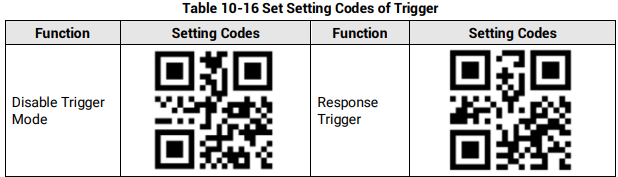
Table 10-16 Set Setting Codes of Trigger
Figure description (text version): Scannable setting codes (kept as an image). Functions in the table, row by row: Disable Trigger Mode / Response Trigger.
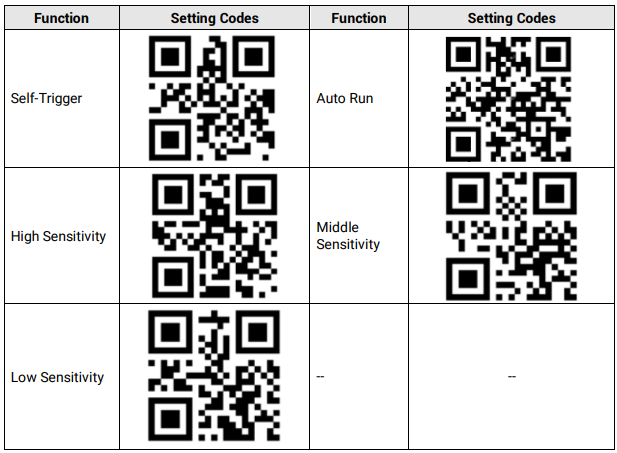
Figure
description (text version):
Scannable setting codes (kept as an image). Functions in the table, row by row: Self-Trigger / Auto Run; High Sensitivity / Middle Sensitivity; Low Sensitivity.10.14 Set Setting Codes of Management
The setting codes of management can save or initialize user parameters, and restart the device.
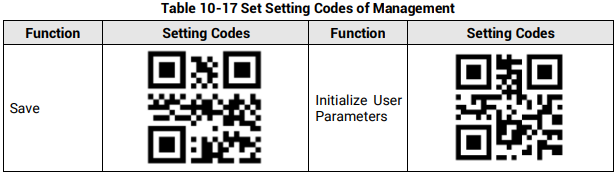
Table 10-17 Set Setting Codes of Management
Figure description (text version): Scannable setting codes (kept as an image). Functions in the table, row by row: Save / Initialize User Parameters.
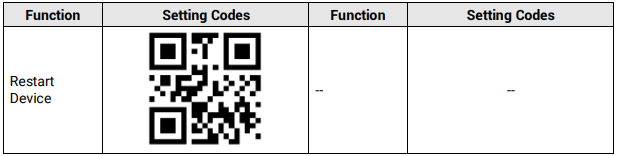
Figure description (text version): Scannable setting codes (kept as an image). Functions in the table, row by row: Restart Device.
Słowa kluczowe
Hikrobot ID2000, setting codes, kody konfiguracyjne, QR, enable setting codes, code type, code color, digital codes, prefix, suffix, stop text, aiming system, buzzer, USB HID, USB CDC, baud rate, parity, trigger, save, restart