
11. Device Maintenance
Streszczenie: Konserwacja czytnika ID2000: aktualizacja firmware, synchronizacja czasu NTP, automatyczna praca po włączeniu i ponowne uruchomienie urządzenia.
EN: ID2000 maintenance: firmware update, NTP time synchronization, device auto work and device reboot.
Dotyczy: przemysłowy czytnik kodów Hikrobot serii ID2000 (typy I–VII; Fast Ethernet, USB lub RS-232; obsługa przez klienta IDMVS i kody konfiguracyjne)
Źródło: dokumentacja producenta (Hikrobot ID2000 Series Industrial Code Reader User Manual); opisy rysunków – opracowanie Multiprojekt
11.1 Update Firmware
The device supports updating firmware via the client software.

- Disconnect the device from the client software.
- Use the firmware package of the corresponding device model for upgrading.
- Do not power off the device or disconnect the network during upgrading.
- The device will reboot automatically after updating the firmware.
Steps1.
- Select the device to be updated in the device list, and right click the device.
2. - Click Firmware Update.
3. - Click
 to select update file from local PC, and click Update to update firmware.

Note: You can also go to Tool → Firmware Updater to update firmware.
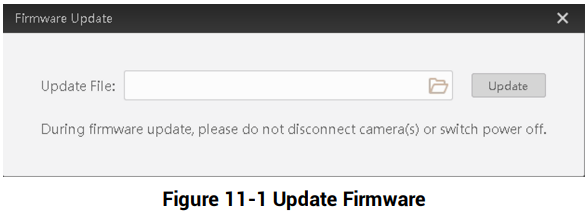
Figure 11-1 Update Firmware
11.2 Set Time
After enabling NTP time synchronization, the device will synchronize time according to the configured interval.
Steps1.
- Go to Config Management, and find Timing.
2. - Click Setting and enable NTP Enable.
3. - Set parameters according to actual demands
Note: Configure NTP server settings before using NTP time synchronization function.

4.
- Click OK after settings.
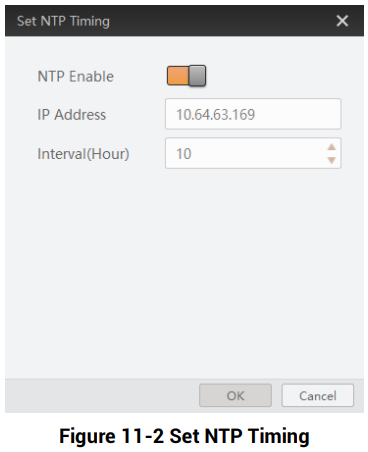
Figure 11-2 Set NTP Timing
Figure description (text version): Set NTP Timing dialog: NTP Enable switched on, IP Address 10.64.63.169, Interval (Hour) 10, OK and Cancel buttons.
11.3 Enable Device Auto Work
This function allows the device to automatically enter the operation status after being powered on.
You can go to Config Management → Device Auto Work Enable, and enable Device Auto Work Enable.
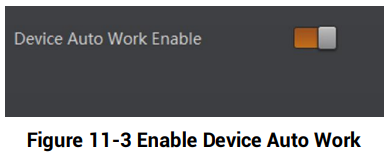
Figure 11-3 Enable Device Auto Work
Figure description (text version): Config Management panel with the Device Auto Work Enable switch turned on.
11.4 Reboot Device
You can reboot the device via client software in 2 ways. Go to Config Management, and click Restart Device. Or, you can select the device to be rebooted in the device list, right click the device, and click Device Reset.
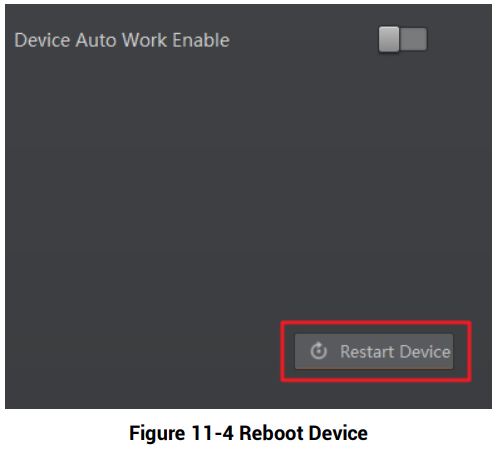
Figure 11-4 Reboot Device
Figure description (text version): Config Management panel with Device Auto Work Enable (off) and the Restart Device button highlighted in red at the bottom right.
Słowa kluczowe
Hikrobot ID2000, firmware update, aktualizacja, Firmware Updater, NTP, time synchronization, device auto work, reboot, restart device, konserwacja